SwiftBot -- Support Manual
Indoor delivery robot with visual-LiDAR fusion navigation, automatic door opening, laser projection, and six operating modes for restaurants, offices, and hotels.
Page 1: Overview
What is the SwiftBot?
SwiftBot is an indoor delivery robot built by HUTECH Robotics for restaurants, offices, hotels, and similar commercial environments. It uses visual-LiDAR fusion for precise positioning and autonomous navigation, allowing it to move through busy spaces without human guidance.
The robot carries items on three tray levels, each supporting up to 14 kg, and delivers them to designated locations using one of six operating modes. It features a 10.1-inch LCD touchscreen, a 6-microphone array for voice interaction, stereo speakers, and a laser projector that displays guidance patterns on the floor during movement.
SwiftBot is available in two models. The SWFD01 is the standard model, while the SWFD11 adds automatic door opening and closing, a compartment door, and a galvo laser projector. Both models run on Android and support Wi-Fi, Bluetooth, 4G LTE, and USB-C connectivity.
Models and Variants
| Model | Key Difference | Weight |
|---|---|---|
| SWFD01 | Standard model, no auto-door | 49 kg |
| SWFD11 | Automatic door open/close, compartment door, galvo laser projector | 59 kg |
At a Glance
- Use case: Food delivery, general delivery, guiding, cruise, birthday celebrations, interactive engagement
- Trays: 3 levels, 14 kg capacity each
- Battery: 20 Ah, 10-24 hours runtime, 4.5 hours to charge
- Speed: 0.5-1.2 m/s adjustable
- Navigation: Visual-LiDAR fusion SLAM
- Minimum passage width: 80 cm
- Screen: 10.1-inch LCD touchscreen
- Connectivity: Wi-Fi (2.4G/5G), Bluetooth, 4G LTE, USB-C, SIM card
- IP rating: IPX2
Page 2: Specifications
| Feature | Description |
|---|---|
| Product model | SWFD01, SWFD11 |
| Operating voltage | DC 23-29.4 V |
| Power input | AC 100-240 V, 50/60 Hz |
| Power output | 29.4 V, 8 A |
| Battery capacity | 20 Ah |
| Charging time | 4.5 hours |
| Battery life | 10-24 hours |
| Cruise speed | 0.5-1.2 m/s (adjustable) |
| Navigation | Laser and visual integrated SLAM positioning |
| Minimum passing width | 80 cm |
| Maximum surmountable height | 20 mm (empty), 15 mm (full load) |
| Maximum surmountable gap width | 35 mm |
| Maximum climbing angle | 5 degrees |
| Tray size | 502 mm x 433 mm |
| Number of trays | 3 |
| Height between tray levels | Top to bottom: 228 mm / 229 mm / 236 mm |
| Tray load capacity | 14 kg per level |
| Overall material | ABS and PC |
| Overall weight | SWFD01: 49 kg; SWFD11: 59 kg |
| Overall dimensions | 593 mm x 488 mm x 1288 mm |
| Screen | 10.1-inch LCD display |
| Operating system | Android |
| Microphone | 6-mic circular array kit |
| Speaker power | 10 W x 2 stereo |
| Working environment | Temperature: 0-40 C; Humidity: 85% RH or less |
| Storage environment | Temperature: -40 to 65 C; Humidity: 85% RH or less |
| Operating altitude | Below 2000 m |
| Surface requirements | Indoor, flat and smooth surfaces |
| IP rating | IPX2 |
| Connectivity | Wi-Fi (2.4G/5G), Bluetooth, 4G LTE, USB-C, SIM card |
| Auto door open/close | SWFD01: Not supported; SWFD11: Supported |
Page 3: Product Components
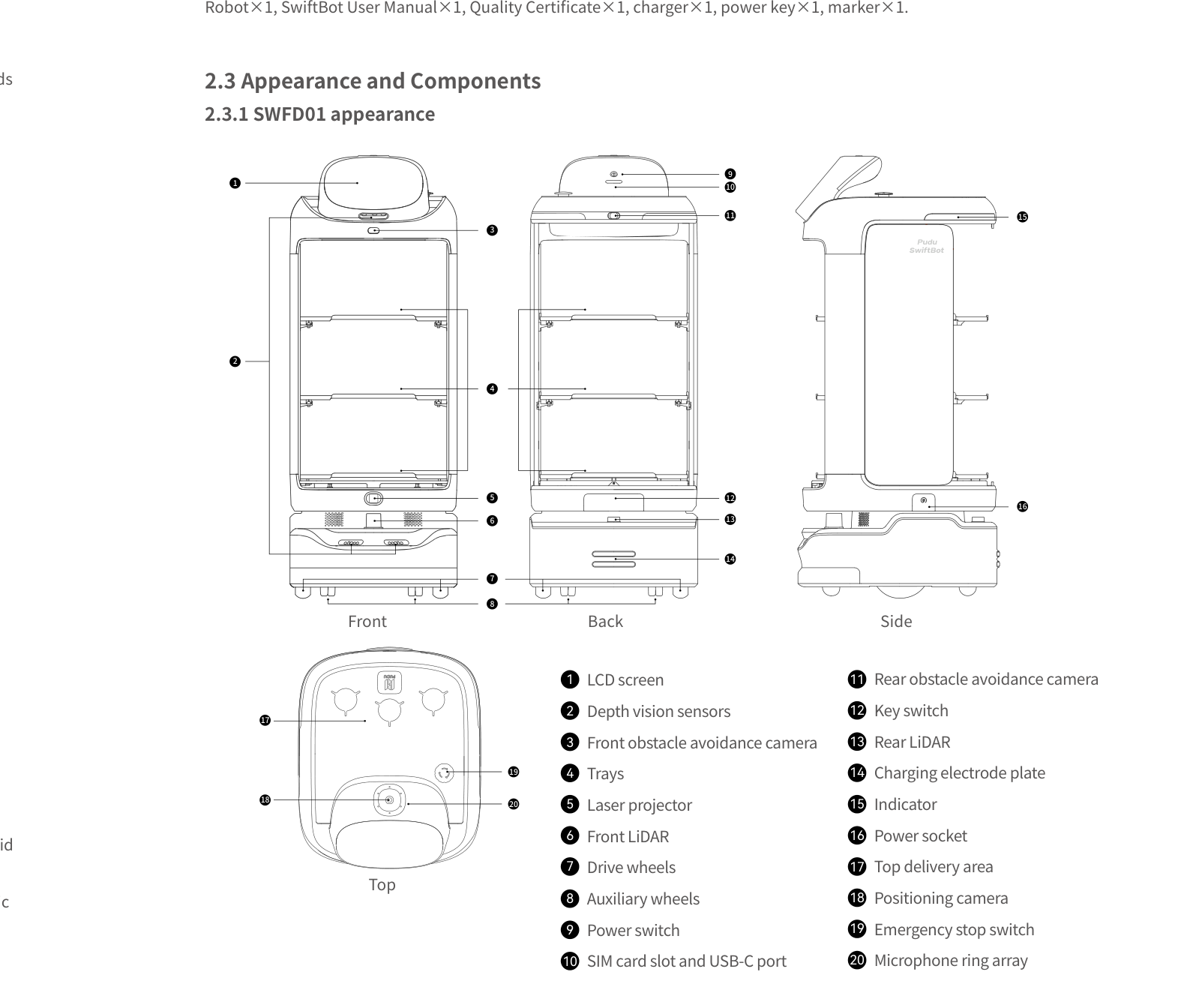
External Components
- LCD screen -- 10.1-inch touchscreen for task management and settings
- Trays (3 levels) -- Stackable delivery surfaces, 502 mm x 433 mm each
- Top delivery area -- Upper surface for additional items
- Compartment door -- SWFD11 only; encloses trays for secure delivery
- Laser projector -- Projects guidance patterns on the floor (galvo laser on SWFD11)
- Light strip -- Status indicator; turns blue when powered on
- Power switch -- Press and hold to power on/off
- Key switch -- Physical key that must be in ON position for operation
- Emergency stop switch -- Red button; press to halt all movement immediately
Sensors and Navigation
- Front LiDAR -- Primary laser-based mapping and navigation sensor
- Rear LiDAR -- Rear-facing laser navigation sensor
- Depth vision sensors -- 3D depth perception for obstacle detection
- Front obstacle avoidance camera -- Forward-facing camera for obstacle detection
- Rear obstacle avoidance camera -- Rear-facing camera for obstacle detection
- Positioning camera -- Ceiling-facing camera for visual positioning
- Microphone ring array -- 6-microphone array for voice interaction
Ports and Interfaces
- Charging electrode plate -- Contact plate for charging pile docking
- Power socket -- Port for direct charger connection
- SIM card slot -- For 4G LTE connectivity
- USB-C port -- For peripheral connections
- Indicator -- Visual status indicator
Page 4: Safety Instructions
Before You Start
- Read all safety instructions before operating the robot.
- Only trained staff should operate the SwiftBot.
- Only trained professionals may disassemble or repair the robot.
- Keep the robot upright during transport. Never lift by the trays or compartment.
Electrical Safety
- Only use the original charger. Non-original chargers are strictly prohibited.
- Charge when battery drops below 20%. Prolonged low-battery use shortens battery life.
- Verify that the power supply voltage matches the range indicated on the charger (AC 100-240 V).
- Ensure the charger clip clicks into place to prevent overheating at the charging port.
- Ensure battery level is above 30% before starting a software upgrade.
Operating Safety
- Do not block the robot's cameras while it is moving.
- Do not clean or maintain the robot while it is powered on.
- Do not place open flames, candles, or flammable/explosive items on the trays. Hot plated food in normal service containers is acceptable.
- Do not pick up or place dishes while the robot is in motion.
- Do not push or carry the robot while it is moving.
Environmental Requirements
- Operating temperature: 0-40 C
- Operating humidity: 85% RH or less
- Operating altitude: Below 2000 m
- Surface: Indoor, flat and smooth floors only
- The robot can climb obstacles up to 20 mm and inclines up to 5 degrees.
Warnings
- Do not use or charge in high-temperature, high-pressure, or explosion-risk environments.
- Do not use in humid environments or where liquids or sticky substances are on the floor.
- Do not use where wireless devices are explicitly prohibited.
- Dispose of the robot and accessories according to local recycling regulations.
Page 5: Basic Operation
Powering On
- Make sure the key switch is in the ON position.
- Move the robot to the designated startup location.
- Press and hold the power switch for 1 second.
- The light strip turns blue, confirming the robot is on.
- Wait 30-60 seconds for the Android system to fully boot.
Powering Off
- Press and hold the power switch for 3 seconds.
- A "Power off" icon appears on the screen.
- Tap "Power off".
- The light strip and screen turn off, confirming shutdown.
Pausing Operation
- To pause: Tap the LCD screen once during any task. The robot stops.
- To resume: Tap the screen again. The robot continues from where it paused.
- Auto resume: If no action is taken during a pause, the robot automatically resumes after 20 seconds (configurable from 5 to 600 seconds).
Emergency Stop
- Press the red emergency stop switch on the robot. All movement halts immediately.
- To release, rotate the emergency stop switch clockwise.
- Follow the on-screen prompts to resume operation.
Moving the Robot Manually
- Power off the robot before moving it manually.
- Keep the robot upright at all times.
- Never lift by the trays or compartment door.
- Never push or carry the robot while it is powered on and moving.
Map Creation
Map creation is performed by a HUTECH technical engineer during installation. The process involves:
- Defining the startup location.
- Walking the robot through the venue to scan the environment.
- Setting table numbers, pickup locations, and routes.
- Configuring docking modes (One-to-one, Free, or Waiting) for multi-robot setups.
Marker spacing guidelines for ceiling heights:
| Ceiling Height | Marker Spacing |
|---|---|
| 2-2.5 m | 0.8 m |
| 2.5-4 m | 1.2 m |
| 4-5 m | 1.5 m |
| 5-5.5 m | 2.0 m |
| 6.5-8 m | 2.5 m |
Page 6: Charging and Battery
Charging Methods
Direct charger connection:
- Locate the charging port on the robot.
- Insert the original charger plug.
- Ensure the charger clip clicks firmly into place.
- A full charge takes approximately 4.5 hours.
- Do not use the robot during charging.
Charging pile (auto charging):
- Enable "Auto charging" in Advanced Settings.
- Go to Settings > Charging and set a low battery threshold (5% to 50%).
- Optionally configure up to three time slots for automatic charging.
- The robot will return to the charging pile after completing its current task when the threshold is reached.
- The charging pile location must be set during the mapping process.
Note: The robot can be charged regardless of whether the key switch is in the ON or OFF position.
Battery Information
| Specification | Value |
|---|---|
| Battery capacity | 20 Ah |
| Operating voltage | DC 23-29.4 V |
| Charger output | 29.4 V, 8 A |
| Charging time | 4.5 hours (empty to full) |
| Battery life | 10-24 hours depending on usage |
Charging Indicators
- The light strip and screen display charging status when connected.
- If the charging indicator does not activate, check that the charger clip is fully clicked in.
Battery Care Tips
- Charge when battery drops below 20%. Do not run the battery flat regularly.
- Heavier tray loads and higher speeds reduce battery life.
- Lower the cruise speed if set to maximum to extend runtime.
- Plan charging around off-peak hours.
- If battery runtime has dropped significantly despite proper habits, the battery may need professional replacement.
Charging Pile Maintenance
- Clean the charging pile weekly with a clean cloth while powered off.
- Do not use cleaners or corrosive chemicals.
- If the charging pile is broken or deformed, contact HUTECH support.
Page 7: Modes and Functions
Food Delivery Mode
What it does: Delivers food from the kitchen to designated tables. Customers remove dishes from the trays, and the robot returns to the starting point.
How to use: 1. Select Food Delivery Mode on the screen. 2. Load food onto the trays. 3. Assign table numbers to each tray (or use single-layer multi-table delivery for up to 10 destinations per tray). 4. Tap "Go" to start delivery. 5. The robot navigates to each table. Customers remove their items. 6. The robot returns to the pickup location.
Settings: - Automatic pick up time: 1-600 seconds (default 30). Robot proceeds automatically if "Done" is not tapped. - Delivery order: Distance-priority (nearest first) or Sequential (top tray to bottom). - Delivery speed: 0.5-1.2 m/s. - Return speed: 0.5-1.2 m/s.
Best for: Restaurants, canteens, food courts.
Delivery Mode
What it does: General-purpose delivery for items beyond food. Works the same as Food Delivery Mode but designed for non-food scenarios.
Best for: Offices, hotels, hospitals, factories.
Cruise Mode
What it does: The robot follows a predefined route, moving through the venue for display, promotion, or item distribution.
How to use: 1. Select Cruise Mode on the screen. 2. Create a custom route with 2-50 stay locations. 3. Set stay time at each location (5-600 seconds, default 30). 4. Choose whether to play voice or music (mutually exclusive). 5. Enable manual control at stay locations if you want the robot to wait for confirmation before continuing.
Best for: Promotions, exhibitions, continuous snack or drink distribution.
Guiding Mode
What it does: The robot leads customers from one location to another, such as from the entrance to a reserved table.
How to use: 1. Select Guiding Mode on the screen. 2. Choose the destination. 3. The robot leads the customer to the location, then returns.
Best for: Restaurants, showrooms, large venues.
Birthday Mode
What it does: Special celebratory mode with themed animations, laser projection, and birthday audio.
How to use: 1. Select Birthday Mode on the screen. 2. Assign a destination table. 3. The robot travels to the table with birthday effects active.
Best for: Birthday celebrations in restaurants and event venues.
Interactive Mode
What it does: Voice and gesture-based interaction with customers for engagement and entertainment.
Best for: Customer engagement, entertainment, promotions.
Smooth Mode
What it does: Limits delivery speed to 0.4 m/s for gentle, stable movement during delicate deliveries. The return speed remains at normal speed.
How to use: 1. Enable Smooth Mode in mode settings. 2. Choose to enable once (auto-disables after the task) or permanently.
Available in: Food Delivery, Delivery, and Cruise modes.
Automatic Door Opening/Closing (SWFD11 Only)
The SWFD11 model can open and close doors autonomously during delivery tasks. This is configured during the mapping process and requires compatible door hardware.
Single-Layer Multi-Table Delivery
Enable "Single-layer multi-table delivery" in Food Delivery or Delivery mode settings. This allows assigning up to 10 table numbers to a single tray. The robot visits each destination in sequence.
Additional Features
Laser Projector: - Activates during movement, turns, door opening (foot-activated on SWFD11), positioning loss, birthday mode, lottery, and error states. - Brightness, colour, and size are configurable in Settings. - Reference lines can be enabled for navigation guidance.
Music: - Import up to 20 custom music tracks via QR code (Android phone required). - Go to Settings > Music library and scan the QR code. - Music can be assigned to play during specific modes.
Voice Interaction: - 6-microphone circular array for voice commands. - Requires network connection.
Docking Modes (Multi-Robot): - One-to-one: Each robot has a fixed pickup location. - Free: Multiple pickup locations; robot chooses the nearest. - Waiting: Temporary docking when all pickup locations are occupied.
Bluetooth Gate Passage: - SwiftBot can pass through Bluetooth-enabled gates automatically during delivery tasks. Configured during installation.
Elevator Support: - Optional Elevator IoT system allows the robot to call and ride elevators for multi-floor delivery. - The robot cannot be paused while waiting for or riding an elevator. - Professional installation is required.
Calling and Third-Party API Integration: - Supports PuduBeeper and third-party API calling when enabled in Advanced Settings. - Third-party APIs must be enabled before the Calling function appears in Settings. - 4G watch cross-floor calling is not currently supported.
Page 8: Maintenance and Servicing
Maintenance Schedule
| Part | Frequency | Method |
|---|---|---|
| Trays | Weekly (powered off) | Wipe surface with a clean cloth |
| Drive wheels | Weekly (powered off) | Wipe surface with a clean cloth; check for debris |
| Auxiliary wheels | Weekly (powered off) | Wipe surface with a clean cloth; check for debris |
| Positioning camera | Weekly (powered off) | Clean with a cloth or lens cleaning tools |
| Depth vision sensors | Weekly (powered off) | Clean with a cloth or lens cleaning tools |
| Front/rear obstacle avoidance cameras | Weekly (powered off) | Clean with a cloth or lens cleaning tools |
| Front/rear LiDAR | Weekly (powered off) | Clean with a cloth or lens cleaning tools |
| Laser projector | Weekly (powered off) | Clean with a cloth or lens cleaning tools |
| Robot body | Monthly (powered off) | Wipe surface with a clean cloth |
| Charging pile | Weekly (powered off) | Wipe with a clean cloth; no chemicals |
Cleaning the Robot
- Always power off the robot before any cleaning or maintenance.
- Use a clean, dry cloth for all surfaces.
- Use lens cleaning tools for cameras, sensors, and LiDAR.
- If a sensor becomes visibly dirty or splashed during service, clean it immediately -- do not wait for the weekly schedule.
- Never use harsh chemicals, cleaners, or corrosive substances.
- Never submerge or spray the robot with water.
When to Replace Parts
- Wheels: If wheels are worn, damaged, or do not spin freely after cleaning, contact HUTECH for replacement.
- Battery: If runtime has dropped significantly despite proper charging habits, the battery may need professional replacement.
- Charger: If the charger is faulty, replace it with an original charger only. Contact HUTECH support.
- Charging pile: If broken or deformed, contact HUTECH support.
Page 9: Troubleshooting
Robot does not power on
What you see: No response when pressing the power button. Light strip does not turn blue. Screen stays dark.
Likely causes: Key switch not in ON position. Battery completely drained. Power switch hardware fault.
What to check: 1. Verify the key switch is turned to the ON position. 2. Check if the robot has been charged recently and has sufficient battery. 3. Connect the charger and wait 10-15 minutes, then attempt to power on again. 4. Inspect the power switch for physical damage.
Solution: Turn key switch to ON. Charge the battery. If neither works, the power switch or battery may require service.
Escalate if: The robot does not power on after confirming the key switch is ON and the battery is charged.
Robot does not charge or charges slowly
What you see: Charging indicator does not activate. Battery level does not increase. Charging takes significantly longer than 4.5 hours.
Likely causes: Charger not fully connected (clip not clicked into place). Dirty charging electrode plate. Faulty charger. Power supply voltage mismatch.
What to check: 1. Ensure the charger plug is fully inserted and the clip has clicked into place. 2. Inspect the charging electrode plate and charging port for dirt or debris. Clean if needed. 3. Verify the wall outlet is providing power (test with another device). 4. Check that the supply voltage matches the charger rating (AC 100-240 V). 5. Try a different known-good original charger if available.
Solution: Reseat the charger connector firmly. Clean the charging contacts. Replace a faulty charger with an original charger only.
Escalate if: Charging still fails after all checks.
Robot moves abnormally or drifts off route
What you see: Robot deviates from expected path. Robot stops unexpectedly mid-route. Navigation appears confused.
Likely causes: Camera or LiDAR sensors blocked or dirty. Startup location incorrect. Map has changed (furniture moved). Reflective or transparent surfaces confusing sensors.
What to check: 1. Pause the current task immediately. 2. Check that no objects are blocking the front/rear cameras, depth sensors, or LiDAR. 3. Clean all sensors with a cloth or lens cleaning tools. 4. Verify the robot was started from the correct startup location with proper orientation. 5. Check if the physical environment has changed since the map was created.
Solution: Clean sensors. Restart the robot from the correct startup location. Update the map if the environment has changed.
Escalate if: Abnormal movement persists after cleaning sensors and verifying the map.
Robot stops and does not resume after obstacle is removed
What you see: Robot detected an obstacle and stopped but does not resume after the obstacle is cleared.
Likely causes: Sensor still detecting a phantom obstacle (dirty sensor). Emergency stop was engaged. Software freeze.
What to check: 1. Check if the emergency stop switch is engaged. If so, rotate clockwise to release. 2. Tap the screen to see if the robot is in a paused state. 3. Clean all obstacle avoidance cameras and depth sensors. 4. Try resuming by tapping the screen. 5. If unresponsive, power off and restart the robot.
Solution: Release the emergency stop. Tap screen to resume. Clean sensors. Restart the robot if needed.
Escalate if: The robot frequently fails to resume after obstacle clearance.
Screen is unresponsive or displays incorrectly
What you see: LCD screen does not respond to touch. Screen shows garbled display. Screen remains black after power on.
Likely causes: Software crash. Screen hardware fault. Robot not fully powered on.
What to check: 1. Verify the robot is powered on (light strip should be blue). 2. Wait 30-60 seconds for the Android system to finish booting. 3. Try pressing the power switch briefly to wake the screen. 4. Power off the robot completely and restart.
Solution: Restart the robot. Allow full boot time. If the screen remains unresponsive, it may need hardware service.
Escalate if: The screen issue persists after a full restart.
Emergency stop engaged accidentally
What you see: Robot stops suddenly. Emergency stop button is depressed. Screen shows emergency stop prompt.
Likely causes: Someone pressed the emergency stop button, either intentionally or by accident.
What to check: 1. Locate the emergency stop switch on the robot. 2. Rotate the switch clockwise to release it. 3. Follow the on-screen prompts to resume the robot.
Solution: Release the emergency stop by rotating clockwise. Follow on-screen instructions to resume the current task.
Escalate if: The emergency stop switch appears physically damaged or does not release properly.
Battery drains faster than expected
What you see: Runtime is significantly shorter than the 10-24 hour rated range. Robot needs charging more frequently than usual.
Likely causes: Battery degradation from prolonged low-battery operation. High workload or heavy tray loads. Continuously operating at maximum speed. Aging battery.
What to check: 1. Review usage patterns: is the robot consistently run below 20% before charging? 2. Check if tray loads are within the 14 kg per level limit. 3. Verify the speed setting is appropriate for the workload. 4. Note the robot's age and total charge cycles.
Solution: Maintain a charging discipline of recharging before 20% battery. Reduce tray loads if overloaded. Lower cruise speed if set to maximum. If the battery is degraded, contact HUTECH for battery replacement.
Escalate if: Battery runtime has dropped significantly despite proper charging habits.
Laser projector not working
What you see: Laser projection on the floor is not visible. Projection is dim or flickering.
Likely causes: Laser projector lens is dirty. Software configuration issue. Hardware fault.
What to check: 1. Clean the laser projector lens with a clean cloth or lens cleaning tool. 2. Check if the projector feature is enabled in the robot's settings. 3. Test in a dimly lit area to confirm the projection is not simply washed out by bright lighting. 4. Restart the robot.
Solution: Clean the projector lens. Verify software settings. Restart the robot.
Escalate if: The laser projector still does not function after cleaning and a restart.
Robot cannot pass through doorway (SWFD11 auto-door)
What you see: SWFD11 fails to open a door automatically. Robot stops in front of the door and does not proceed.
Likely causes: Door hardware not compatible. Sensor alignment issue. Feature not configured in the map/software.
What to check: 1. Confirm the robot model is SWFD11 (SWFD01 does not support auto-door). 2. Verify the auto-door feature is enabled and the door is mapped in the system. 3. Check that the door mechanism is compatible and functioning. 4. Clean the front sensors and cameras.
Solution: Verify model and configuration. Ensure the door mechanism is operational. Reconfigure the door points in the map if needed.
Escalate if: The auto-door feature is properly configured but still fails.
Robot makes unusual noises during movement
What you see: Grinding, clicking, or squeaking sounds from wheels or body during movement.
Likely causes: Debris caught in drive wheels or auxiliary wheels. Wheels worn or damaged. Loose internal components.
What to check: 1. Power off the robot. 2. Inspect the drive wheels and auxiliary wheels for trapped debris, hair, or foreign objects. 3. Clean the wheels with a cloth. 4. Check if wheels spin freely by hand. 5. Listen carefully to identify the source of the noise.
Solution: Remove debris from wheels. If wheels are worn or damaged, contact HUTECH for replacement parts.
Escalate if: Unusual noises persist after cleaning.
App does not start automatically after power on
What you see: The Android desktop is displayed after booting but the App does not launch. Robot remains on the Android home screen.
Likely causes: Software glitch. App was uninstalled or corrupted during an update. System setting changed.
What to check: 1. Wait 30-60 seconds to confirm the app has not auto-started. 2. Look for the App icon on the Android desktop and tap it manually to launch. 3. If the app is missing or crashes on launch, restart the robot. 4. Check if a software update is available in Settings > Software Update.
Solution: Tap the App icon on the desktop to start it manually. If it is missing, a reinstallation via software update or factory reset may be required.
Escalate if: The Pudu App cannot be found or crashes repeatedly after restart and software update.
Page 10: Frequently Asked Questions
Charging and Battery
How long does it take to fully charge the SwiftBot? Approximately 4.5 hours from empty to full. Connect the original charger and ensure the clip clicks into place. Do not use the robot during charging.
How long does the battery last on a full charge? Between 10 and 24 hours depending on workload, speed settings, number of deliveries, and tray loads. Heavier loads and higher speeds reduce runtime.
When should I charge the robot? Charge when battery level drops below 20%. Running at low battery for extended periods shortens the overall battery lifespan. Plan charging around off-peak hours.
Can I use a third-party charger? No. Only the original charger is permitted. Non-original chargers may damage the robot, void the warranty, or cause overheating. Contact HUTECH support for a replacement charger.
What is the battery capacity? 20 Ah, operating at DC 23-29.4 V. The charger output is 29.4 V at 8 A.
Can the SwiftBot be charged with the key switch in the OFF position? Yes. The robot can charge regardless of whether the key switch is ON or OFF. Simply connect the charger or dock at the charging pile.
How do I configure auto charging? Enable "Auto charging" in Advanced Settings, then go to Settings > Charging to set a low battery threshold (5%-50%) and up to three time slots. A charging pile must be purchased and its location set during mapping.
Operation
How do I power on the SwiftBot? Turn the key switch to ON, move the robot to the startup location, and press and hold the power switch for 1 second. The light strip turns blue.
How do I power off the SwiftBot? Press and hold the power switch for 3 seconds. Tap "Power off" on screen. The light strip and screen turn off.
How do I pause the robot during a task? Tap the screen once to pause. Tap again to resume.
What operating modes does SwiftBot support? Six modes: Food Delivery, Delivery, Cruise, Guiding, Birthday, and Interactive.
What is the difference between SWFD01 and SWFD11? Both share the same core specifications. The SWFD11 adds automatic door opening/closing, a compartment door, and a galvo laser projector. It weighs 59 kg versus 49 kg for the SWFD01.
What is the minimum corridor width the robot can pass through? 80 cm. Ensure all routes on the map have at least this clearance.
Does SwiftBot support Bluetooth gate passage? Yes. The robot can be configured to pass through Bluetooth-enabled gates automatically during delivery tasks. This is set up during installation.
Does SwiftBot support elevator usage? Yes, with an optional Elevator IoT system. The robot can call and ride elevators for multi-floor delivery. Professional installation is required. The robot cannot be paused while waiting for or riding an elevator.
What is Smooth Mode? A reduced-speed mode (0.4 m/s) for stable delivery of delicate items. Available in Food Delivery, Delivery, and Cruise modes. Can be enabled once or permanently. Return speed is unaffected.
What are the docking modes? Three modes for multi-robot setups: One-to-one (fixed pickup location per robot), Free (nearest available pickup location), and Waiting (temporary docking when all pickup locations are occupied).
Can SwiftBot deliver to multiple tables from a single tray? Yes. Enable "Single-layer multi-table delivery" in mode settings. You can assign up to 10 table numbers to a single tray.
What laser projector scenarios does SwiftBot support? The projector activates during straight movement, turning, door opening, positioning loss, birthday mode, lottery wins, no network connection, and abnormality states. Brightness, colour, and size are configurable.
How do I import custom music? Go to Settings > Music library on the robot screen. Scan the QR code with an Android phone. Up to 20 tracks can be added. Only Android phones are supported for music import.
Safety
How does the emergency stop work? Press the red emergency stop switch to halt immediately. Rotate clockwise to release. Follow on-screen prompts to resume.
How much weight can each tray hold? Up to 14 kg per tray level. Distribute weight evenly. Do not exceed the rated load.
Can I place hot items or open flames on the robot? No open flames, candles, or flammable/explosive items. Hot plated food in normal service containers is fine.
General
What surfaces can the SwiftBot operate on? Indoor flat and smooth surfaces only. It can climb obstacles up to 20 mm and inclines up to 5 degrees. Avoid wet, sticky, or rough surfaces.
What is the IP rating? IPX2 -- protection against light dripping water when tilted up to 15 degrees. The robot is not waterproof.
What connectivity options does SwiftBot have? Wi-Fi (2.4G and 5G), Bluetooth, 4G LTE, USB-C, and SIM card slot.
What temperature range can SwiftBot operate in? 0 to 40 degrees Celsius during operation. Storage: -40 to 65 degrees Celsius. Humidity must be 85% RH or less.
What is the maximum surmountable gap width? 35 mm. The maximum obstacle height is 7-15 mm at full load and 20 mm at empty load.
Software
Are software updates available? Yes. Ensure battery is above 30% and the robot has a network connection. Check Settings > Software Update.
Does the robot need a network connection? A network connection is required for software updates, voice interaction, and cloud platform features. Basic delivery modes work without a network.
How do I install a SIM card? Insert the SIM card while the robot is powered off.
Page 11: Service and Escalation
When to Contact Support
- Robot does not power on after verifying the key switch and charging the battery.
- Charging fails after checking all connections, cleaning contacts, and verifying power supply.
- Navigation problems persist after cleaning sensors and verifying the map.
- Screen remains unresponsive after a full restart.
- Emergency stop switch is physically damaged or will not release.
- Battery runtime has dropped significantly despite proper charging habits.
- Laser projector does not work after cleaning and checking settings.
- Auto-door feature (SWFD11) fails despite correct configuration.
- Wheels are worn or damaged.
- Unusual noises persist after cleaning wheels.
- Pudu App crashes repeatedly or cannot be found.
- Charging pile is broken or deformed.
Before You Call
Gather the following information before contacting support:
- Robot model (SWFD01 or SWFD11)
- Serial number
- Description of the issue and when it started
- Steps you have already tried
- Software version (visible in Settings)
- Photos or videos of the issue, if applicable
Support Contact
- HUTECH Robotics: ai.hutechrobotics.com
- Manufacturer Support: techservice@pudutech.com