PuduBot 2 -- Support Manual
Indoor hospitality delivery robot with visual positioning, 3D obstacle avoidance, self-mapping capability, and six operating modes for restaurants, hotels, Internet cafes, and factories.
Page 1: Overview
What is the PuduBot 2?
PuduBot 2 is an indoor delivery robot built by HUTECH Robotics for restaurants, Internet cafes, hotels, and factories. It uses visual positioning (VSLAM) combined with LiDAR and 3D obstacle avoidance to navigate autonomously through busy environments without external mapping tools.
The robot features three removable and adjustable metal trays, each with a rated capacity of 10 kg (13 kg maximum). At 39 kg, PuduBot 2 is one of the lighter delivery robots. It includes a 10.1-inch LCD touchscreen, stereo speakers, a collision sensor, and a light strip for status indication.
A standout feature is self-mapping. PuduBot 2 can create its own map on first power-on using an activation code from the manufacturer support, without requiring external mapping equipment. It supports six operating modes: Food Delivery, Delivery, Cruise, Direct, Birthday, and Collection.
Models and Variants
| Model | Screen | Weight | Notes |
|---|---|---|---|
| PDFD12 | 7-inch LCD | 37 kg | Compact variant |
| PDFD22 | 10.1-inch LCD | 39 kg | Standard model; optional 32-inch advertising screen available |
At a Glance
- Use case: Food delivery, general delivery, cruise, direct delivery, birthday celebrations, collection
- Trays: 3 levels, removable and adjustable metal trays, 10 kg rated / 13 kg max each
- Battery: 20 Ah, 10-24 hours runtime, approximately 3 hours to charge
- Speed: 0.5-1.2 m/s adjustable
- Navigation: Visual positioning (VSLAM) + LiDAR + 3D obstacle avoidance
- Self-mapping: Yes, no external tools needed
- Minimum passage width: 80 cm
- Screen: 10.1-inch LCD touchscreen (PDFD22)
- Connectivity: Wi-Fi (2.4G), Bluetooth, 3G, 4G LTE
- IP rating: IP20
- Parking accuracy: 5-10 cm from arrival point
Page 2: Specifications
| Feature | Description |
|---|---|
| Product model | PDFD22 |
| Operating voltage | DC 23-29.4 V |
| Power input | AC 100-240 V, 50/60 Hz |
| Power output | 29.4 V, 8 A |
| Battery capacity | 20 Ah |
| Charging time | About 3 hours |
| Battery life | 10-24 hours |
| Cruise speed | 0.5-1.2 m/s (adjustable) |
| Navigation method | Visual positioning (VSLAM) + LiDAR |
| Minimum passing width | 80 cm |
| Maximum surmountable height | 10 mm |
| Maximum climbing angle | 5 degrees |
| Tray size | 520 mm x 435 mm |
| Number of trays | 3 (up to 4 supported) |
| Height between tray levels | Adjustable |
| Tray load capacity | Rated: 10 kg/level; Maximum: 13 kg/level |
| Overall material | PC+ABS / Aluminium alloy |
| Overall weight | 39 kg |
| Overall dimensions | 580 mm x 535 mm x 1290 mm |
| Screen | 10.1-inch LCD screen |
| Operating system | Android |
| Speaker power | 10 W x 2 stereo |
| Working environment | Temperature: 0-40 C; Humidity: 85% RH or less |
| Storage environment | Temperature: -40 to 65 C; Humidity: 85% RH or less |
| Operating altitude | Below 2000 m |
| Surface requirements | Indoor, flat and smooth surfaces |
| IP rating | IP20 |
| Connectivity | Wi-Fi (2.4G), Bluetooth, 3G, 4G LTE |
| Smallest RGBD detectable obstacle | 2 cm within 1 metre |
| Parking accuracy | 5-10 cm from arrival point |
| Maximum VSLAM ceiling height | 30 metres |
| Maximum boot points per map | 16 |
RGBD Sensor Types
| Type | Notes |
|---|---|
| HRT011 | Standard RGBD sensor |
| Dabai MAX | Requires operating system version 2.0 or above |
Multi-Robot Path Width Requirements
| Scenario | Minimum Width |
|---|---|
| Single robot | 0.8 m |
| Two robots passing | 2 m |
| Recommended general path width | More than 1.2 m |
Page 3: Product Components
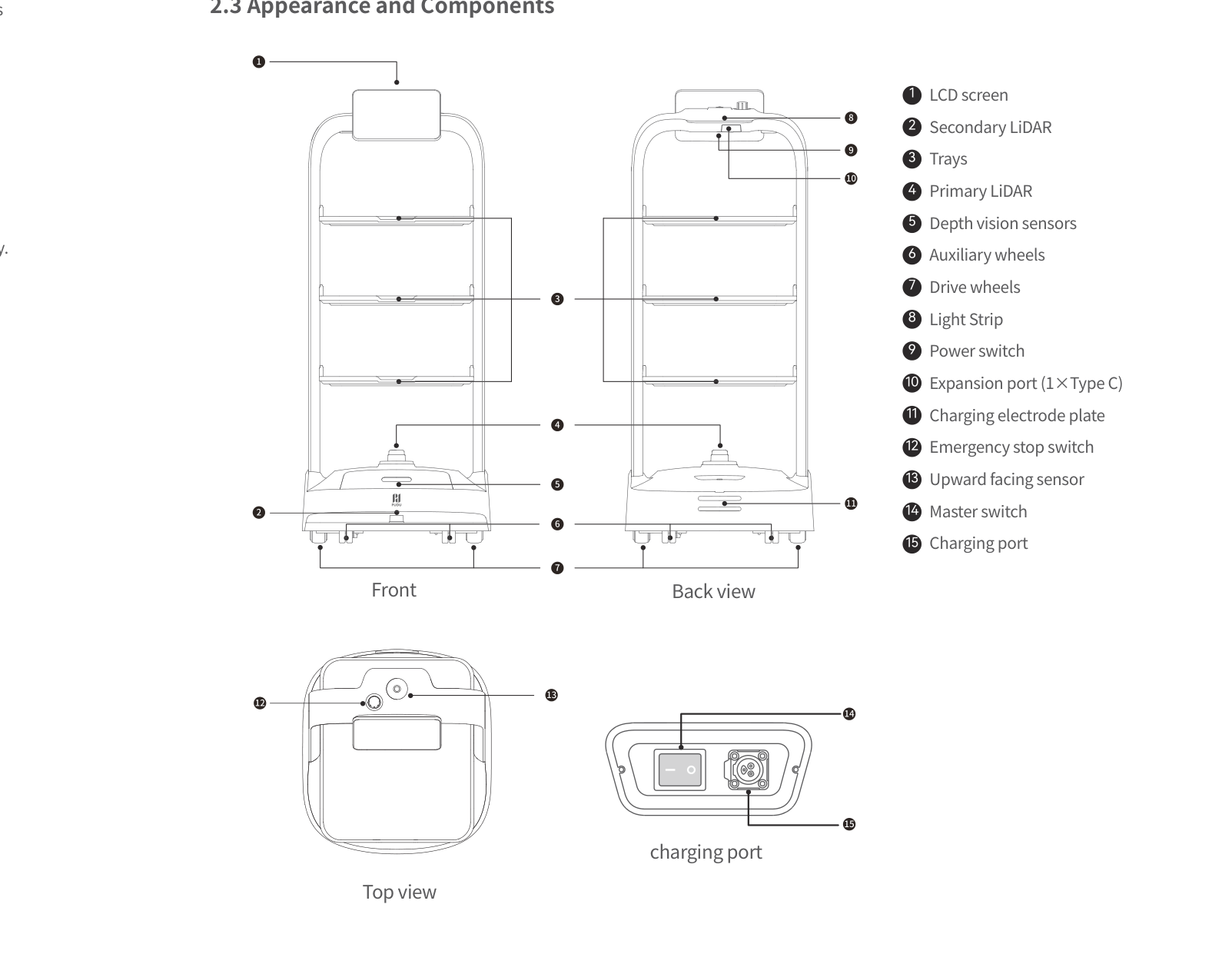
External Components
- LCD screen -- 10.1-inch touchscreen for task management and settings (PDFD22)
- Trays (3 levels) -- Removable and adjustable metal trays, 520 mm x 435 mm each
- Light strip -- Status indicator; turns blue when powered on
- Power switch -- Press and hold to power on/off
- Master switch -- Physical switch that must be in the ON (dash) position for operation
- Emergency stop switch -- Red button; press to halt all movement immediately
- Charging electrode plate -- Contact plate for charging pile docking
- Charging port -- Port for direct charger connection
Sensors and Navigation
- Primary LiDAR -- Main laser-based mapping and navigation sensor
- Secondary LiDAR -- Additional laser sensor for enhanced coverage
- Depth vision sensors -- 3D depth perception for obstacle avoidance (RGBD)
- Upward facing sensor -- Ceiling-facing camera for VSLAM visual positioning
- Collision sensor -- Detects physical contact; stops and pauses the robot if hit during movement
Ports and Interfaces
- Expansion port -- 1x Type-C for peripheral connections
- Drive wheels -- Main locomotion wheels
- Auxiliary wheels -- Support and stability wheels
Page 4: Safety Instructions
Before You Start
- Read all safety instructions before operating the robot.
- Only trained staff should operate the PuduBot 2.
- Only trained professionals may disassemble or repair the robot.
- Keep the robot upright during transport. Never lift by the trays.
- When transporting, observe local regulations for maximum single-person lifting weight (robot weighs 39 kg).
Electrical Safety
- Only use the original charger. Non-original chargers are strictly prohibited.
- Charge when battery drops below 20%. Prolonged low-battery use shortens battery life.
- Verify power supply voltage matches the charger rating (AC 100-240 V).
Operating Safety
- Do not block the camera on top of the robot while it is moving.
- Do not clean or maintain the robot while it is powered on.
- Do not place open flames, candles, or flammable/explosive items on the trays. Hot food in normal service containers is acceptable.
- Do not pick up or place items while the robot is moving.
- Do not push or carry the robot while it is in motion.
- Do not pause the robot on a slope -- it may slide.
Environmental Requirements
- Operating temperature: 0-40 C
- Operating humidity: 85% RH or less
- Operating altitude: Below 2000 m
- Surface: Indoor, flat and smooth floors only
- The robot can cross obstacles up to 10 mm and climb inclines up to 5 degrees.
Warnings
- Do not use or charge in high-temperature, high-pressure, or explosion-risk environments.
- Do not use in humid environments or where liquids or sticky substances are on the floor.
- Do not use where wireless devices are explicitly prohibited.
- Dispose of the robot and accessories according to local recycling regulations.
Page 5: Basic Operation
Powering On
- Ensure the master switch is in the ON (dash) position.
- Move the robot to the startup location (where the startup label is fixed).
- Press and hold the power switch for 1 second.
- The light strip turns blue, confirming the robot is powered on.
- Wait 30-60 seconds for the Android system to fully boot.
Powering Off
- Press and hold the power switch for 3 seconds.
- A shutdown prompt appears on screen.
- Tap "Powered off".
- The light strip and screen turn off, confirming shutdown.
Pausing Operation
- To pause: Tap the LCD screen once during any task. The robot stops.
- To resume: Tap the screen again. The robot continues from where it paused.
Collision sensor: If the collision sensor is hit while the robot is moving, the robot stops and pauses automatically. Resume by following the on-screen instructions.
Emergency Stop
- Press the red emergency stop switch. All movement halts immediately.
- To release, rotate the switch clockwise until it pops out.
- Follow the on-screen prompts to resume operation.
Moving the Robot Manually
- Power off the robot before moving it.
- Keep the robot upright at all times.
- Never lift by the trays.
- Never push the robot while it is powered on and moving.
- Maximum climbing angle is 5 degrees. Do not pause on a slope.
Map Creation (Self-Mapping)
PuduBot 2 can create maps independently on first startup:
- Contact HUTECH technical support (techservice@pudutech.com) to obtain an activation code.
- Choose a suitable startup location with obvious ceiling features.
- Fix a startup label at the chosen location on the floor.
- Power on the robot for the first time.
- Enter the activation code when prompted.
- Follow the on-screen instructions to create the map.
- Push the robot slowly (approximately 0.5 m/s) through the venue during mapping.
- Keep the upward-facing camera unobstructed during the process.
Tips for successful mapping: - Choose startup locations under ceiling areas with distinctive visual features. - Ensure consistent, adequate lighting throughout the venue. - Remove large reflective or transparent surfaces that may confuse the visual system. - Clean all sensors before mapping. - Up to 16 boot points can be set on a single map.
Note: PuduBot 2 does not support marker mapping. It uses VSLAM and LiDAR only. However, it can use a laser map created on a BellaBot (laser portion only; fusion map parameters need modification).
Page 6: Charging and Battery
Charging Methods
Direct charger connection:
- Locate the charging port on the robot.
- Insert the original charger plug.
- Ensure the connection is firm and secure.
- A full charge takes approximately 3 hours -- faster than most other models in the range.
- Do not use the robot during charging.
Charging pile (electrode plate):
- The charging pile location must be set during the mapping process.
- The robot docks at the charging pile via the charging electrode plate.
- Auto-charging thresholds and time slots can be configured in settings.
Battery Information
| Specification | Value |
|---|---|
| Battery capacity | 20 Ah |
| Operating voltage | DC 23-29.4 V |
| Charger output | 29.4 V, 8 A |
| Charging time | About 3 hours (empty to full) |
| Battery life | 10-24 hours depending on usage |
Charging Indicators
- The light strip and screen display charging status when connected.
- If no charging indication appears, check the charger connection and electrode plate cleanliness.
Battery Care Tips
- Charge when battery drops below 20%. Do not run the battery flat regularly.
- Heavier tray loads and higher speeds reduce battery life.
- Lower the cruise speed if maximum speed is not needed.
- Schedule charging during quiet periods.
- If battery runtime has dropped significantly despite proper habits, the battery may need professional replacement.
Page 7: Modes and Functions
Food Delivery Mode
What it does: Carries food from the kitchen to designated tables. Customers remove items, and the robot returns to base.
How to use: 1. Select Food Delivery Mode on the screen. 2. Load food onto the trays. 3. Assign table numbers to each tray. 4. Tap "Go" to start delivery. 5. The robot navigates to each table. 6. Customers remove their items. 7. The robot returns to the pickup location.
Settings: - Delivery order: Distance-priority (nearest first) or Sequential (top tray to bottom). - Delivery speed: 0.5-1.2 m/s.
Best for: Restaurants, canteens, food courts.
Delivery Mode
What it does: General-purpose item delivery for non-food scenarios.
How to use: Same workflow as Food Delivery Mode but designed for general items.
Best for: Hotels, offices, factories, Internet cafes.
Cruise Mode
What it does: The robot follows a predefined loop route for touring, promotion, or continuous item availability.
How to use: 1. Select Cruise Mode on the screen. 2. Configure the loop route with stopping points. 3. Start the cruise.
Best for: Promotions, buffet service, exhibitions.
Direct Mode
What it does: The robot goes directly to a single designated point without following a multi-stop route. It then returns to base.
How to use: 1. Select Direct Mode on the screen. 2. Choose one destination. 3. Tap "Go". 4. The robot delivers and returns.
Best for: On-demand single deliveries, ad-hoc requests.
Birthday Mode
What it does: Special celebration mode with themed audio and visual effects.
How to use: 1. Select Birthday Mode on the screen. 2. Assign a destination table. 3. The robot travels with birthday effects active.
Best for: Birthday celebrations in restaurants and event venues.
Collection Mode
What it does: Visits designated points to collect used items (dishes, trays) and returns them to a clearing station.
How to use: 1. Select Collection Mode on the screen. 2. Set collection locations. 3. Tap "Go". 4. The robot visits each location, then returns to the clearing area.
Best for: Bussing tables, clearing used items in canteens and restaurants.
Steady Mode
What it does: Limits the robot's maximum speed to 0.4 m/s for smooth, stable delivery. If you set a speed lower than 0.4 m/s, the robot moves at that slower speed. Return speed is not affected.
How to use: 1. Go to Settings > Speed > Steady Mode. 2. Enable Steady Mode.
Best for: Soups, drinks, and delicate items that may spill.
Additional Features
Collision Sensor: If the collision sensor is hit while the robot is moving, the robot stops and pauses the current task. Resume by following the on-screen instructions.
Music: Supports MP3, WAV, FLAC, AAC, PCM, WMA, and APE formats. Music can play during food delivery, delivery, birthday, direct, collection, cruise modes, return trips, and calling tasks.
Docking Modes (Multi-Robot): - One-to-one: Each robot has a fixed pickup location. - Free: Multiple pickup locations by priority; nearest chosen first. - Waiting: Temporary parking points; robot moves to a pickup point when one becomes available.
Docking spacing requirements: - At least 35 cm between robots. - At least 15 cm to the back wall. - At least 35 cm to the side wall.
Calling Methods: Four methods supported: PuduBeeper, PuduLink app, 4G watch, and Pudu pager. PuduBeeper, PuduLink, and 4G watch require network connectivity and "response call" enabled. The pager works without network but needs a gateway connection. Up to 48 pager tasks can be queued; unexecuted tasks expire after 5 minutes.
Bluetooth Gate Passage: PuduBot 2 supports automatic passage through Bluetooth-enabled gates. Configured during installation.
4G SIM Card: Insert a SIM card while the robot is powered off. Supports FDD B1/B3/B7/B8/B20/B28 and TDD B34/B38/B40 bands. Enables cloud access, remote monitoring, and calling functions.
Advertising Screen: The PDFD22 model supports an optional 32-inch advertising screen for promotional content.
Page 8: Maintenance and Servicing
Maintenance Schedule
| Part | Frequency | Method |
|---|---|---|
| Trays | Weekly (powered off) | Wipe surface with a clean cloth |
| Drive wheels | Weekly (powered off) | Wipe surface with a clean cloth; check for debris |
| Auxiliary wheels | Weekly (powered off) | Wipe surface with a clean cloth; check for debris |
| Visual sensor (upward facing) | Weekly (powered off) | Clean with a cloth or lens cleaning tools |
| Depth vision sensors (RGBD) | Weekly (powered off) | Clean with a cloth or lens cleaning tools |
| Primary and secondary LiDAR | Weekly (powered off) | Clean with a cloth or lens cleaning tools |
| Robot body | Monthly (powered off) | Wipe surface with a clean cloth |
Cleaning the Robot
- Always power off the robot before any cleaning or maintenance.
- Use a clean, dry cloth for all surfaces.
- Use lens cleaning tools for cameras, sensors, and LiDAR.
- If a sensor becomes dirty or splashed during service, clean it immediately -- do not wait for the weekly schedule.
- Never use harsh chemicals or corrosive substances.
- Never submerge or spray the robot with water (IP20 -- no water protection).
- Trays are removable. Remove them for thorough cleaning when needed.
When to Replace Parts
- Wheels: If wheels are worn, damaged, or do not spin freely after cleaning, contact HUTECH for replacement.
- Battery: If runtime has dropped significantly despite proper charging habits, the battery may need professional replacement.
- Charger: If the charger is faulty, replace it with an original charger only. Contact HUTECH support.
- Light strip: If non-functional after a restart, likely a hardware issue. Contact HUTECH support.
Page 9: Troubleshooting
Robot does not power on
What you see: No response when pressing the power button. Light strip does not turn blue. Screen stays dark.
Likely causes: Master switch not in ON position. Battery fully drained. Power switch fault.
What to check: 1. Verify the master switch is turned to the dash (ON) position. 2. Check if the robot has been charged recently. 3. Connect the charger and wait 10-15 minutes, then try powering on again. 4. Inspect the power switch for physical damage.
Solution: Turn master switch to ON. Charge the battery. If still unresponsive after charging, the power system may need service.
Escalate if: The robot does not power on after confirming the master switch and adequate charge.
Robot does not charge or charges slowly
What you see: No charging indicator. Battery level does not rise. Charging takes much longer than 3 hours.
Likely causes: Charger not properly connected. Dirty charging electrode plate or port. Faulty charger. Power supply issue.
What to check: 1. Ensure the charger is fully inserted into the charging port. 2. Inspect the charging electrode plate and charging port for dirt or debris. Clean if needed. 3. Test the wall outlet with another device. 4. Verify supply voltage is AC 100-240 V. 5. Try a different original charger if one is available.
Solution: Reseat charger connection. Clean charging contacts. Replace faulty charger with original only.
Escalate if: Charging still fails after all checks.
Robot moves abnormally or drifts off course
What you see: Robot deviates from mapped route. Stops unexpectedly. Navigation appears disoriented.
Likely causes: Top camera or sensors blocked or dirty. Startup location incorrect. Map outdated due to environment changes. Reflective surfaces confusing visual navigation.
What to check: 1. Pause the current task. 2. Check that nothing is covering the upward facing sensor or top camera. 3. Clean the visual sensor, depth vision sensors, and LiDAR with a cloth or lens tools. 4. Confirm the robot was started from the correct startup label location. 5. Check if the environment has changed since the map was created.
Solution: Clean sensors. Restart from correct startup location. Create a new map if the environment has changed significantly.
Escalate if: Abnormal movement continues after sensor cleaning and map verification.
Map creation fails
What you see: Robot cannot complete the mapping process. Map is incomplete or inaccurate. Activation code rejected.
Likely causes: Invalid or expired activation code. Startup label not properly positioned. Poor lighting or reflective surfaces interfering with visual positioning. Sensors dirty.
What to check: 1. Verify the activation code is correct and has not expired. Contact HUTECH support for a new code if needed. 2. Ensure the startup label is firmly fixed in a suitable location on the floor. 3. Check that the environment has adequate, consistent lighting. 4. Clean all sensors before attempting to map. 5. Remove any large reflective or transparent surfaces that may confuse the visual system.
Solution: Obtain a valid activation code. Reposition the startup label. Improve lighting. Clean sensors. Retry mapping.
Escalate if: Mapping fails repeatedly despite proper setup.
Low VSLAM map quality during mapping
What you see: Map created via VSLAM or fusion mapping is incomplete, distorted, or has poor quality.
Likely causes: VSLAM camera surface is dirty. Camera was blocked while pushing the robot. Pushing speed was too fast during mapping.
What to check: 1. Check if the VSLAM camera lens is clean. Enter the preview interface to verify the camera view. 2. Ensure nothing is covering the upward-facing camera while pushing the robot during mapping. 3. Reduce the pushing speed to approximately 0.5 m/s during the mapping process.
Solution: Clean the VSLAM camera. Keep the camera unobstructed. Push slowly (0.5 m/s) and steadily. Retry the mapping process.
Escalate if: Map quality remains poor after cleaning the camera and following proper mapping technique.
Robot cannot recognise the startup point after VSLAM mapping
What you see: Robot fails to determine its position when placed at the startup point. Positioning error is displayed.
Likely causes: Startup point location lacks distinctive ceiling features. Camera or sensors dirty.
What to check: 1. Push the robot under a ceiling area with obvious visual features and allow it to reposition. 2. Clean the VSLAM camera and depth sensors. 3. Verify the startup label is correctly positioned.
Solution: Choose a startup point with distinctive ceiling features. Clean all sensors. Push the robot to an area with obvious features to help it reposition.
Escalate if: The robot consistently fails to recognise startup points despite proper feature selection and clean sensors.
Screen is unresponsive or blank
What you see: LCD screen does not respond to touch. Screen stays black after power on. Screen displays abnormally.
Likely causes: Robot not fully booted. Software crash. Screen hardware fault.
What to check: 1. Confirm the robot is powered on (light strip should be blue). 2. Wait 30-60 seconds for the Android system to finish booting. 3. Try tapping firmly in different areas of the screen. 4. Power off completely and restart the robot.
Solution: Wait for full boot. Restart the robot. If the screen remains unresponsive after restart, it may need hardware service.
Escalate if: The screen does not respond after a full restart.
Emergency stop engaged accidentally
What you see: Robot stops suddenly. Emergency stop button is depressed.
Likely causes: Accidental or intentional press of the emergency stop switch.
What to check: 1. Locate the emergency stop switch on the robot. 2. Rotate the switch clockwise to release it. 3. Follow the on-screen prompts to resume the task.
Solution: Release the emergency stop by rotating clockwise. Resume via on-screen prompts.
Escalate if: The switch appears damaged or does not release properly. Do not attempt to disassemble.
Battery drains faster than expected
What you see: Runtime significantly below the 10-24 hour rated range. Robot needs charging much more frequently.
Likely causes: Habitual low-battery operation. Overloaded trays. High speed settings. Battery aging.
What to check: 1. Check if the robot is regularly run below 20% before charging. 2. Verify tray loads are within the 10 kg rated (13 kg maximum) limit per level. 3. Review speed settings and adjust if set to maximum. 4. Consider the robot's age and total number of charge cycles.
Solution: Charge before battery reaches 20%. Reduce tray loads. Lower cruise speed. Request battery replacement if the battery is degraded.
Escalate if: Battery runtime continues to decline despite following proper charging and loading practices.
Robot cannot cross a threshold or small obstacle
What you see: Robot stops at a doorway threshold or small bump on the floor.
Likely causes: Obstacle exceeds the 10 mm maximum surmountable height. Tray load too heavy for obstacle crossing. Floor transition is too steep.
What to check: 1. Measure the height of the obstacle or threshold. 2. Check if it exceeds 10 mm (the maximum surmountable height). 3. Reduce tray load if the robot is heavily loaded. 4. Verify the incline does not exceed 5 degrees.
Solution: If the obstacle is above 10 mm, install a ramp or remove the obstacle. Reduce tray load for borderline obstacles.
Escalate if: The robot cannot cross obstacles well within the 10 mm specification -- there may be a wheel or motor issue.
Light strip not functioning
What you see: Light strip does not illuminate. No blue light on power-on. Light strip flashes erratically.
Likely causes: Software glitch. Loose internal connection. LED failure.
What to check: 1. Restart the robot and observe the light strip during boot. 2. Check if the light strip behaviour indicates a specific error (refer to the operation guide). 3. Note whether the issue is with the entire strip or a section.
Solution: Restart the robot. If the light strip does not activate after restart, it likely needs hardware service.
Escalate if: The light strip remains non-functional after a restart.
Robot makes unusual noises
What you see: Grinding, clicking, or squeaking sounds during movement.
Likely causes: Debris caught in drive wheels or auxiliary wheels. Worn wheels. Loose parts.
What to check: 1. Power off the robot. 2. Inspect drive wheels and auxiliary wheels for trapped debris, hair, or objects. 3. Clean the wheels with a cloth. 4. Check that wheels spin freely by hand.
Solution: Remove debris from wheels. Clean wheels. Contact HUTECH for wheel replacement if worn.
Escalate if: Unusual noises persist after thorough wheel cleaning.
Page 10: Frequently Asked Questions
Charging and Battery
How long does it take to charge PuduBot 2? About 3 hours from empty to full -- faster than most other models in the range. Use the original charger only. Do not use the robot during charging.
How long does the battery last? Between 10 and 24 hours depending on speed settings, tray loads, delivery frequency, and conditions.
When should I charge the robot? When battery drops below 20%. Consistently running at low battery shortens the battery's lifespan. Charge during quiet periods.
Can I use a different charger? No. Only the original charger is allowed. Non-original chargers may damage the robot, void the warranty, or create safety hazards.
Operation
How do I power on PuduBot 2? Turn the master switch to ON (dash position), move the robot to the startup location, and press and hold the power switch for 1 second. The light strip turns blue.
How do I power off PuduBot 2? Press and hold the power switch for 3 seconds. Tap "Powered off" on screen.
How do I pause the robot? Tap the screen once to pause. Tap again to resume.
What modes does PuduBot 2 offer? Six modes: Food Delivery, Delivery, Cruise, Direct, Birthday, and Collection.
How does PuduBot 2 create maps? The robot can self-map on first startup. You need an activation code from the manufacturer support and a startup label fixed at the chosen location. No external mapping tools are required.
What is the minimum corridor width? 80 cm for a single robot. 2 m for two robots to pass each other. Recommended general path width is more than 1.2 m.
What is Direct Mode? A single-destination delivery mode. The robot goes to one point and returns. No multi-stop routing. Useful for on-demand requests.
What is Steady Mode? Limits the robot to 0.4 m/s for stable delivery. Enable in Settings > Speed > Steady Mode. Return speed is not affected.
What calling methods does PuduBot 2 support? Four methods: PuduBeeper, PuduLink app, 4G watch, and Pudu pager. PuduBeeper, PuduLink, and 4G watch require network. Pager works without network but needs a gateway.
What music formats are supported? MP3, WAV, FLAC, AAC, PCM, WMA, and APE.
Does PuduBot 2 support Bluetooth gate passage? Yes. Configured during installation by technical engineers.
What are the docking modes? Three modes: One-to-one (fixed pickup), Free (nearest by priority), and Waiting (temporary parking when pickup locations are full).
What is the minimum docking distance between robots? At least 35 cm between robots, 15 cm to the back wall, 35 cm to the side wall.
How many tasks can the pager handle at once? Up to 48 tasks. Unexecuted tasks expire after 5 minutes.
What is the parking accuracy? 5-10 cm from the designated arrival point in both Precise and Normal modes.
Mapping and Navigation
Can PuduBot 2 use a laser map from BellaBot? Yes, but only the laser portion. If using a fusion map from BellaBot, the parameters in the map file need modification.
Does PuduBot 2 support marker mapping? No. PuduBot 2 does not have a marker camera. It uses VSLAM and LiDAR only.
What is the maximum ceiling height VSLAM can support? 30 metres. Choose startup locations with obvious ceiling features for reliable positioning.
How many boot points can PuduBot 2 have? Up to 16 boot points on a single map. Each must be under a ceiling area with distinctive visual features.
How do I get an activation code for mapping? Contact HUTECH technical support at techservice@pudutech.com or +86 755-86952935.
What is the smallest obstacle the RGBD can detect? 2 cm within 1 metre distance. If using Dabai MAX RGBD, the operating system must be version 2.0 or above.
Safety
How does the emergency stop work? Press the red switch to halt immediately. Rotate clockwise to release. Follow on-screen prompts to resume.
How much weight can each tray hold? Rated at 10 kg per level for normal operation. Maximum 13 kg per level. Distribute weight evenly.
Can I place hot items on the trays? Hot food in standard serving dishes is fine. Open flames, candles, and flammable items are prohibited. The metal trays are durable but not designed for direct heat sources.
General
What surfaces can PuduBot 2 operate on? Indoor flat and smooth surfaces only. It can cross obstacles up to 10 mm and inclines up to 5 degrees. Avoid wet, sticky, carpeted, or rough surfaces.
How heavy is PuduBot 2? 39 kg -- one of the lighter delivery robots. Observe local lifting regulations when transporting.
What is the IP rating? IP20. No water protection. Keep the robot away from water spills.
What connectivity does PuduBot 2 support? 2.4G Wi-Fi, Bluetooth, 3G, and 4G LTE. A Type-C expansion port is also available.
Does PuduBot 2 support 4G? Yes. Insert a SIM card while the robot is powered off. Supports FDD B1/B3/B7/B8/B20/B28 and TDD B34/B38/B40 bands.
Maintenance
How do I clean the sensors? Power off the robot. Clean the visual sensor, depth sensors, and LiDAR weekly with a cloth or lens tools. Clean immediately if contaminated during service.
Are the trays removable? Yes. Three removable and adjustable metal trays. Height is adjustable to accommodate different item sizes.
Can I clean the robot while it is on? No. Always power off before any cleaning or maintenance.
Page 11: Service and Escalation
When to Contact Support
- Robot does not power on after verifying master switch and charging the battery.
- Charging fails after checking all connections, cleaning contacts, and verifying power supply.
- Navigation problems persist after cleaning sensors and verifying the map.
- Map creation fails repeatedly despite proper setup and valid activation code.
- VSLAM map quality is poor after cleaning cameras and following proper technique.
- Robot cannot recognise startup points despite choosing locations with distinctive ceiling features.
- Screen remains unresponsive after a full restart.
- Emergency stop switch is damaged or will not release.
- Battery runtime has dropped significantly despite proper charging habits.
- Robot cannot cross obstacles within the 10 mm specification.
- Light strip does not function after a restart.
- Wheels are worn or damaged.
- Unusual noises persist after wheel cleaning.
Before You Call
Gather the following information before contacting support:
- Robot model (PDFD12 or PDFD22)
- Serial number
- Description of the issue and when it started
- Steps you have already tried
- Software version (visible in Settings)
- Activation code (if mapping-related issue)
- Photos or videos of the issue, if applicable
Support Contact
- HUTECH Robotics: ai.hutechrobotics.com
- Manufacturer Support: techservice@pudutech.com